.svg)
The Users section of the Enpass Admin Console lets you search and filter your entire user base to zero in on exactly the users you need — whether that's everyone who hasn't completed setup, or those who have never used Enpass at all. You can also export the filtered list for reporting and compliance purposes.
The Users List
To access the Users list, log in to the Enpass Admin Console and navigate to Users in the left sidebar. The list shows all users in your organization along with their name, email, whether they have been provisioned via SCIM, last used, and license status. From this view you can search, filter, and export users.
Searching for Users
Use the Search Users bar at the top right of the Users section to find users by name or email address.
Filtering Users
Four filters are available to narrow down the user list:
License
Filter by license assignment status:
-
Assigned — Users who have been assigned a license.
-
Unassigned — Users who exist in the system but have no license assigned.
Status
Filter by where the user is in their onboarding journey:
-
No License — User has not been assigned a license.
-
Pending User Action — User has a license but has not completed setup.
-
Using Enpass — User has completed setup and is actively using Enpass.
Active Users
Filter by recent activity:
-
Active in past 30 days — Users who have used Enpass in the last 30 days.
-
Inactive in past 30 days — Users who have not used Enpass in the last 30 days.
-
Never used — Users who have never launched Enpass after setup.
Enpass Hub Authentication
Filter by Hub authentication status:
-
Authenticated — User's device is connected and authenticated with the Enpass Hub.
-
Never Authenticated — User has never authenticated with the Enpass Hub.
Exporting the User List
Click the download icon (↓) at the top right of the Users section to export the current user list. The export reflects any active filters, making it useful for onboarding reports or compliance reviews.
Viewing Individual User Details
Click ⋮ to the right of any user's name and select View Details to drill into their status, onboarding progress, and connected devices.
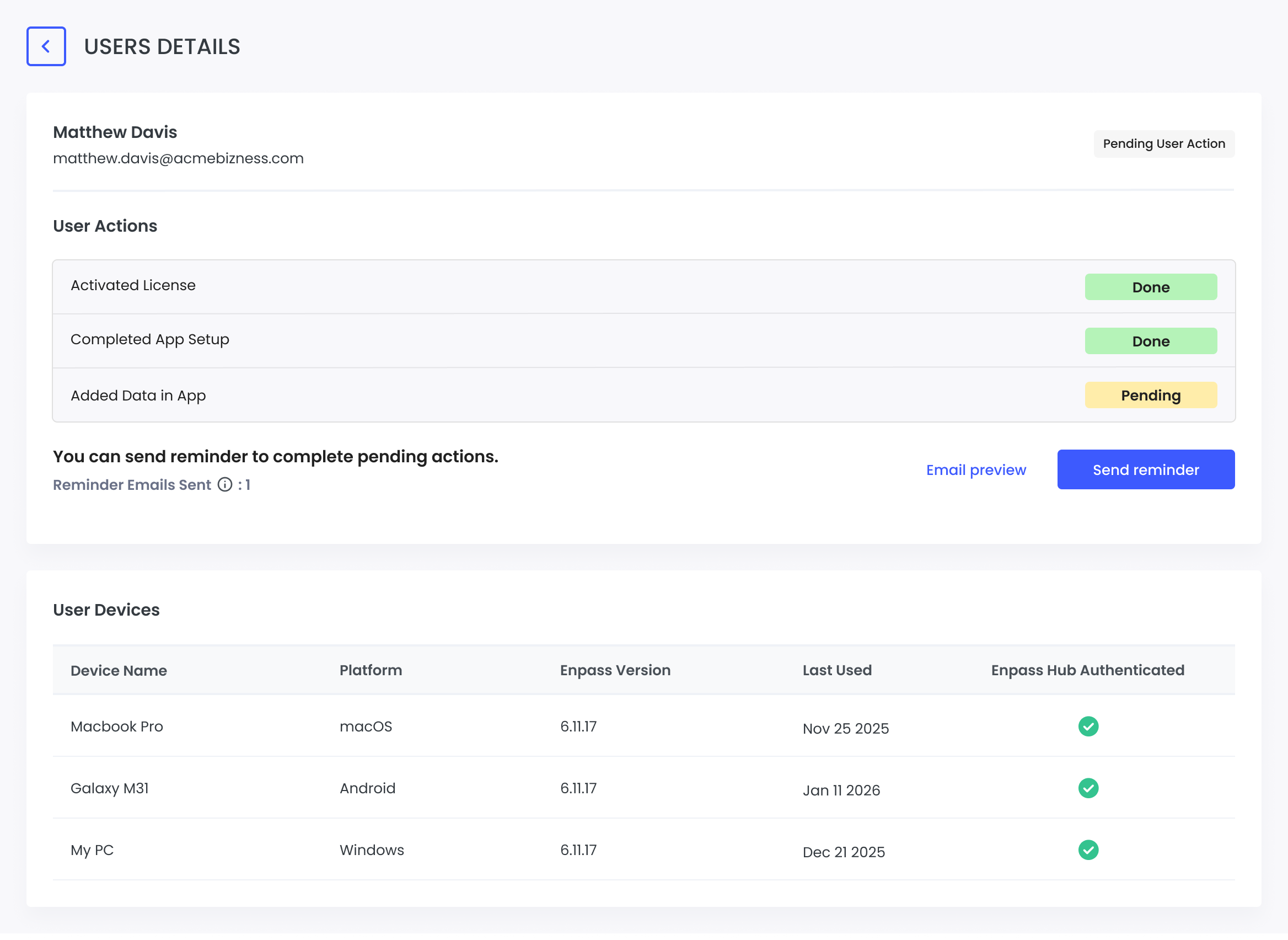
The User Details page displays different content depending on the user's current status:
No License
The user exists in the system but has no license assigned. An Assign License button is displayed to grant them access.
Pending User Action
The user has a license but has not completed setup. Their onboarding progress is shown across the following stages:
-
Activated License — Confirms the user has activated their license.
-
Completed App Setup — Indicates whether the user has finished configuring the Enpass app.
-
Added Data in App — Shows whether the user has started using the app by adding credentials.
You can send setup reminders directly from this page:
-
View how many reminder emails have already been sent.
-
Click Email Preview to review the reminder content.
-
Click Send Reminder to prompt the user to complete their setup.
Using Enpass
The user has completed setup and is actively using Enpass. The details part is visible when a user has completed app setup in a device.
|
Column |
Description |
|---|---|
|
Device Name |
The name of the device (e.g., MacBook Pro, Galaxy M31, My PC) |
|
Platform |
The operating system (macOS, Android, Windows, iOS) |
|
Enpass Version |
The version of Enpass installed on that device |
|
Last Used |
The date the device last accessed Enpass |
|
Enpass Hub Authenticated |
Whether the device is authenticated with the Enpass Hub |