.svg)
When a user leaves your organization, it is important to follow a structured offboarding process to protect your organization's credential data and maintain vault security. This page covers the steps to remove a user and the best practices to follow before doing so.
⚠️ Administrator Accounts and SCIM: Administrator accounts cannot be removed through SCIM-based deprovisioning. If an administrator needs to be offboarded, their administrator role must first be removed from the Enpass Admin Console, and only then can they be offboarded. Attempting to remove an admin account via your Identity Provider alone will not complete the offboarding.
Before You Offboard a User
Taking the following steps before removing a user helps prevent data loss and ensures continuity of access for your team.
1. Transfer or Take Ownership of Shared Vaults
If the departing user owns or manages any shared business vaults, ownership must be transferred before the account is removed. Removing a user who owns shared vaults without transferring ownership may result in other users losing access.
-
Review all shared vaults the user manages.
-
Transfer vault ownership to another appropriate team member, or take ownership as an administrator.
-
Revoke the departing user's access to all shared vaults immediately after ownership is transferred.
Read more: Monitoring Shared Vaults
2. Rotate Passwords in Shared Vaults
After ownership is transferred, rotate the passwords for any credentials stored in shared vaults that the departing user had access to. This reduces the risk of unauthorized access using credentials the departing user may have memorized or copied without authorization.
3. Review Group Memberships
If you are deactivating rather than fully removing the user, consider removing them from any groups they belong to. If the user is reactivated in the future, they may unintentionally regain policies associated with those groups.
Removing a User
Once the pre-offboarding steps above are complete, follow these steps to remove the user from your organization.
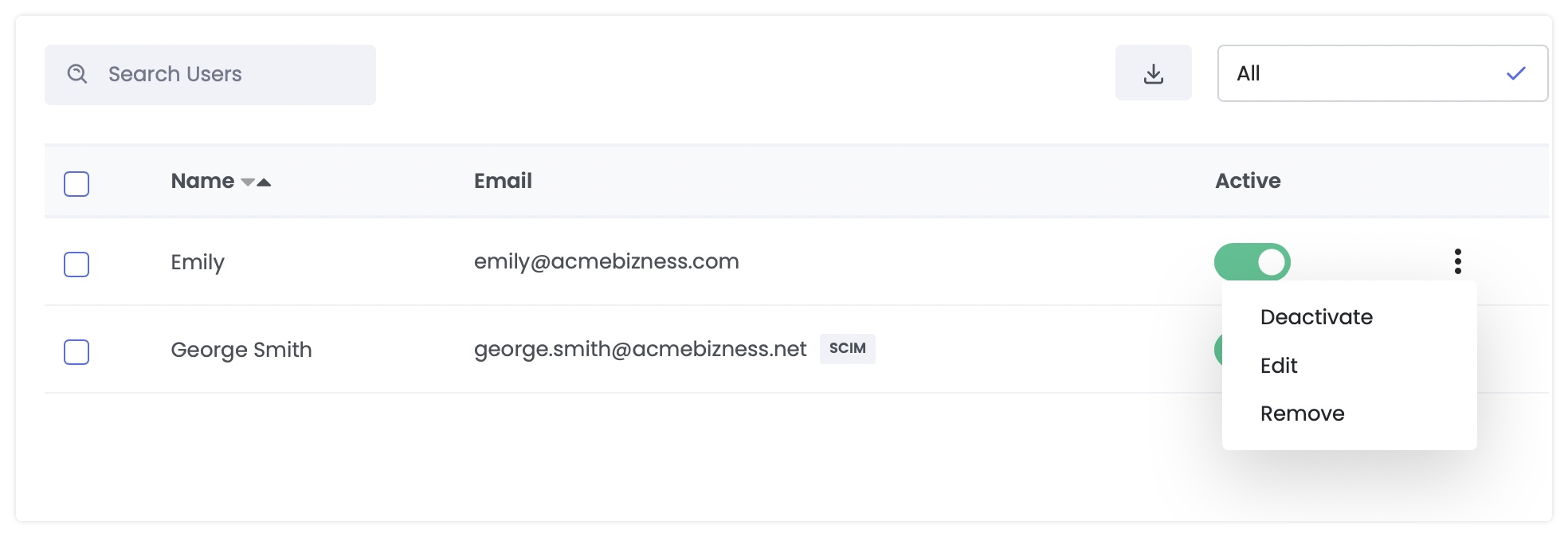
Step 1: Deactivate the User's License
-
Log in to the Enpass Admin Console.
-
Navigate to Users and locate the user.
-
Toggle off the Active option to the right of their information.
-
A warning will appear describing the consequences of removal. Confirm that all handover and offboarding steps have been completed.
-
Click Confirm.
Step 2: Remove the User
-
Click ⋮ to the right of the user's information.
-
Select Remove.
-
On the final confirmation dialog, click Remove.
The user's access to all business vaults and the Enpass Hub will be revoked immediately.
Note: If the user is sharing vaults as a manager with other members of your organization, a warning will appear before removal. Ensure vault ownership has been transferred before proceeding.
Offboarding via SCIM (Identity Provider)
If your organization uses SCIM-based provisioning, users can be deprovisioned automatically when they are removed or unassigned from the Enpass application in your Identity Provider.
⚠️ Important: SCIM deprovisioning does not apply to administrator accounts. Administrators must be manually removed from the Admin Console before being deprovisioned via SCIM. See the warning at the top of this page.