.svg)
These policies cover additional security and usability settings that don't fall under other policy categories.
To configure these policies, go to Policies > Advanced in the Admin Console.
How to Configure Advanced App Policies
-
Log in to the Enpass Admin Console with an administrator account.
-
Navigate to Policies in the left sidebar.
-
Under the APPS section, select Advanced.
-
Adjust settings using the drop-down menus and checkboxes.
-
Click Save in the top-right corner to apply your changes.
Tip: Use Discard Changes before saving if you need to revert uncommitted edits.
Policy Settings Reference
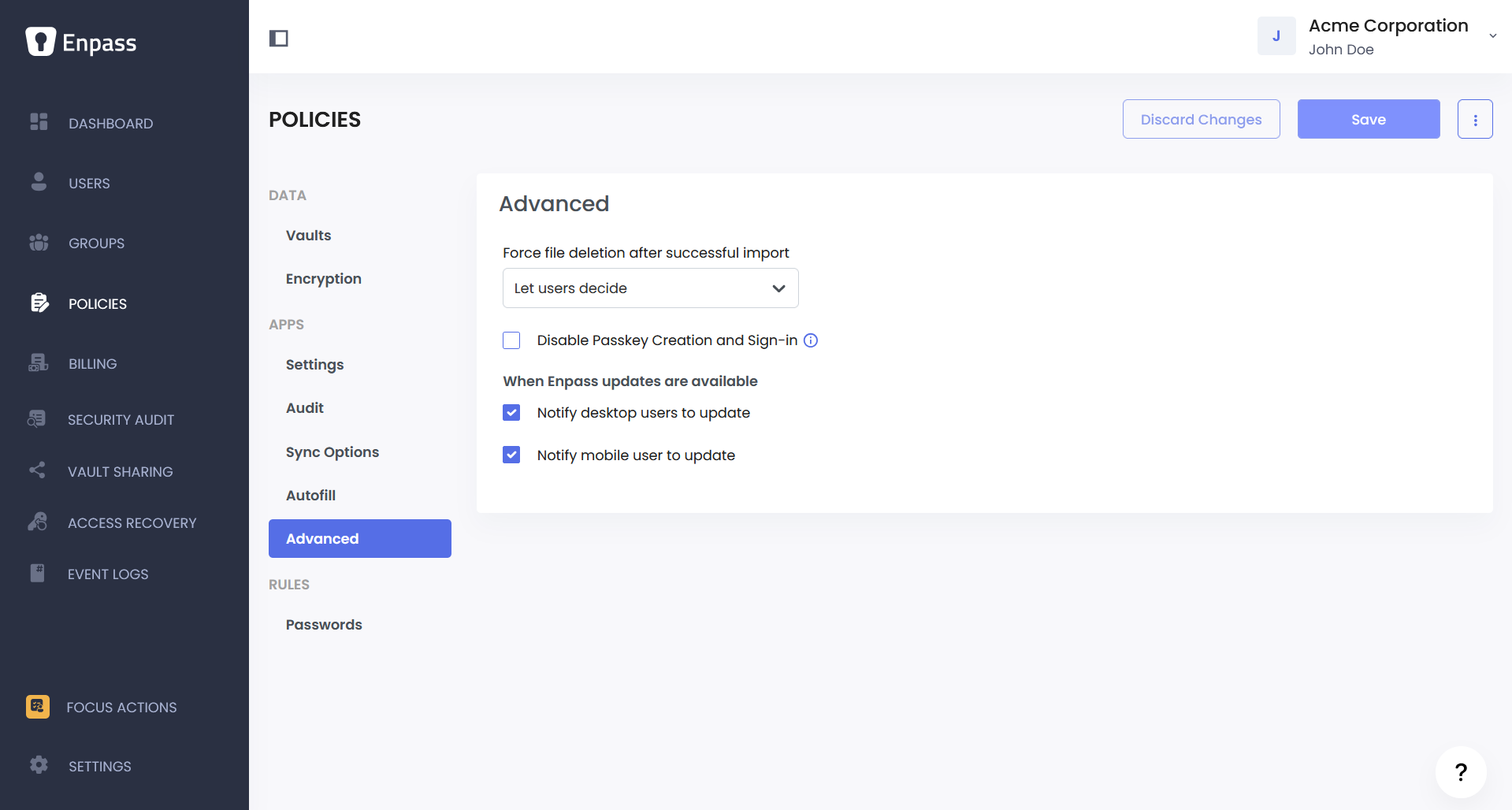
Force File Deletion After Successful Import
Controls whether the source file (such as a CSV or JSON) is automatically deleted from the user's device after a successful import into Enpass.
|
Option |
Description |
|---|---|
|
Yes |
The import file is automatically deleted after the data has been successfully imported into Enpass. |
|
No |
The import file is left on the device after import. |
|
Let users decide |
Users can choose whether to delete the file after import. |
Recommendation: Set this to "Yes" — import files typically contain passwords in plaintext and should not be left on the device. Set to "No" only if the tool you're migrating from is no longer accessible, since you won't be able to generate another export file after deletion. In that case, remind users to verify their imported data in Enpass before manually deleting the file.
Disable Passkey Creation and Sign-in
When enabled, users cannot create or sign in with passkeys through Enpass. Enpass works as a passkey provider — users can create, store, and use passkeys for passwordless sign-in directly from Enpass, just like they do with passwords.
Recommendation: Keep this disabled so users can take advantage of passkeys through Enpass. Since users are already familiar with Enpass for password management, it provides a natural path toward passwordless authentication without introducing a separate tool or workflow. Only enable this if your organization uses a different passkey provider and wants to prevent overlap.
When Enpass Updates Are Available
These settings control whether users see a notification when a new version of Enpass is available.
Notify Desktop Users to Update — When enabled, desktop users will see a notification when a new Enpass update is available.
Notify Mobile Users to Update — When enabled, mobile users will see a notification when a new Enpass update is available.
Recommendation: In MDM or endpoint-managed environments where updates are pushed by IT, disable these notifications — they would only confuse users who don't have permission to update on their own. Enable both if users manage their own app updates.
Setting Up Different Policies Across Teams
If certain teams have different requirements — for example, a particular team that self-manages their app installations while the rest of the organization uses MDM — you can use group policy overrides to enable update notifications only for that group.
Note: Group policy overrides are managed from the Groups section of the Admin Console, not the Policies section. See the Managing Group Policies documentation for details.