.svg)
Every change made to your organization's policies is automatically logged in the Admin Console. Policy history gives you a clear audit trail showing what was changed, who changed it, and when.
How to View Policy History
-
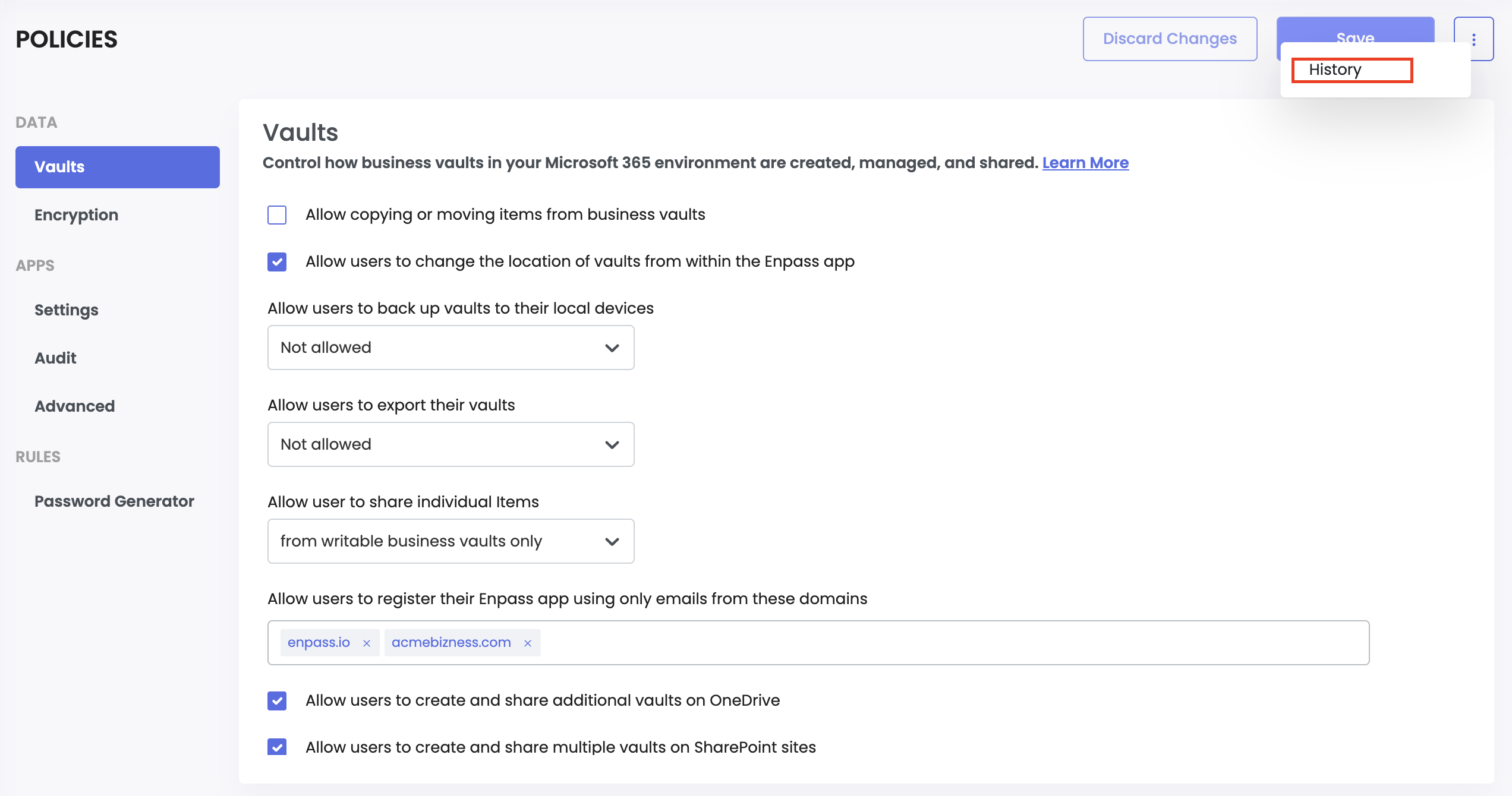
In the Admin Console, navigate to Policies in the left sidebar.
-
Click the three-dot menu (⋮) next to the Save button in the top-right corner.
-
Select History.
-
You'll see a list of all policy changes, sorted by date. Select any entry to see the details.
Understanding the Change Log
Each entry in the policy history shows:
Who made the change — The admin email address that authorized the change.
When it was made — The date and time of the change, including the timezone.
What changed — A side-by-side comparison of the previous value and the new value for each modified setting.
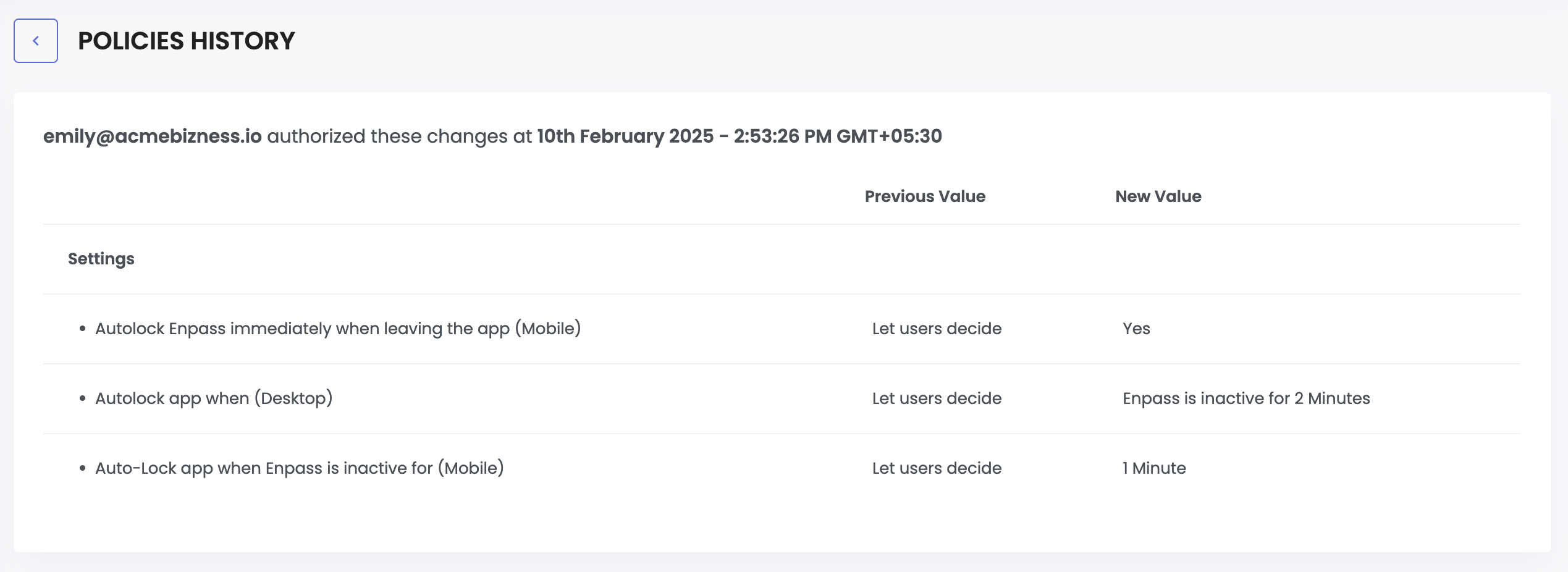
If a previous value or new value is empty, it means the policy was either newly added or removed — not modified.
When to Review Policy History
During security audits — Use the history as evidence that policies have been reviewed and maintained according to your compliance requirements.
When troubleshooting user issues — If users report unexpected behavior in the Enpass app, check whether a recent policy change could be the cause.