.svg)
Enpass includes a built-in password generator that creates strong, random passwords for users. These rules let you define what that generator produces, setting minimum standards for length, complexity, and character requirements. Enpass enforces these rules when new passwords are created and flags any existing passwords that don't comply. Non-compliant passwords are counted in the Security Audit page of the Admin Console, which shows the number of rule-violating passwords across your organization without revealing the passwords themselves.
To configure these rules, go to Policies > Password Generator in the Admin Console.
Note: These rules apply on Enpass app versions 6.8.3 and later.
Important: Password generation rules do not prevent users from creating passwords manually. They flag non-compliant passwords as rule-violating, so users and administrators can identify and address them.
How to Configure Password Generation Rules
-
Log in to the Enpass Admin Console with an administrator account.
-
Navigate to Policies in the left sidebar.
-
Under the RULES section, select Password Generator.
-
Add a Master Rule or Domain-Specific Rule using the buttons in the top-right corner.
Master Rule
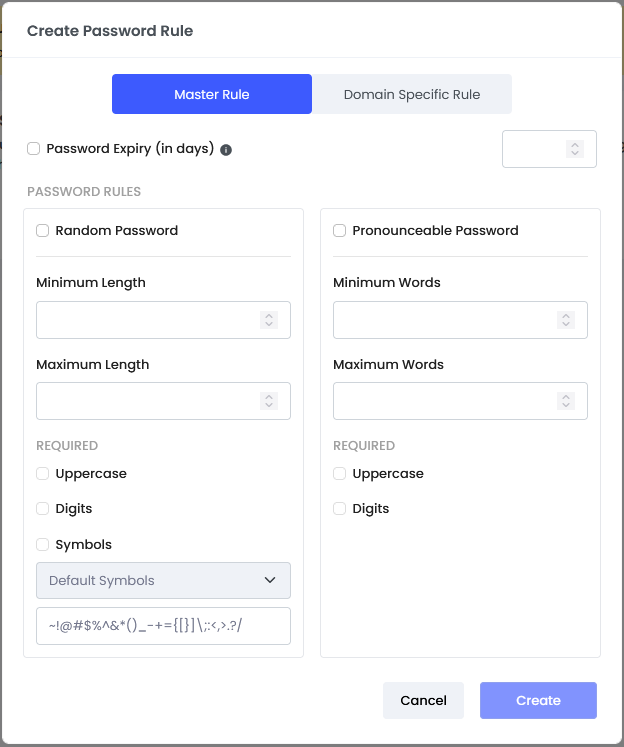
The Master Rule sets the baseline password generation policy for your entire organization. It applies to all domains unless a domain-specific rule overrides it.
Tip: Create your Master Rule before adding any domain-specific rules.
Random Passwords
Configure the requirements for randomly generated passwords:
Minimum Length — Set the minimum number of characters. Longer passwords are significantly harder to crack.
Maximum Length — Set the maximum number of characters. Some websites enforce upper limits, so this helps ensure generated passwords are accepted.
Uppercase — Require at least one uppercase letter.
Digits — Require at least one numeric character.
Symbols — Require special characters in generated passwords. You can further control which symbols are used:
-
All — Include all predefined symbols.
-
Include — Specify exactly which symbols should be used.
-
Exclude — Block specific symbols that may cause issues on certain websites.
Pronounceable Passwords
Configure the requirements for passphrase-style passwords made up of words from a Diceware word list:
Minimum Words — Set the minimum number of words in the passphrase.
Maximum Words — Set the maximum number of words.
Uppercase — Require at least one uppercase letter.
Digits — Require at least one numeric character.
Recommendation: Random passwords of sufficient length are stronger and recommended for most use cases. Set a minimum length of at least 18 characters with uppercase, digits, and symbols required. Pronounceable passwords are useful in situations where users need to type passwords manually, such as shared workstation logins. For pronounceable passwords, require at least 6 words.
Password Expiry
If your organization's password policy requires credentials to be rotated after a specific interval, you can set an expiry period in days.
When enabled — Passwords older than the specified interval will be flagged as expired in Enpass, and the count of expired passwords will appear in the Security Audit page of the Admin Console.
When disabled — Passwords remain valid indefinitely and are never flagged as expired.
Recommendation: Only enable password expiry if it's required by your organization's compliance or regulatory framework. Frequent forced rotation often leads to weaker passwords as users resort to predictable patterns. Strong, unique passwords that are monitored for breaches (via password audit policies) are generally more effective than time-based rotation.
Domain-Specific Rules
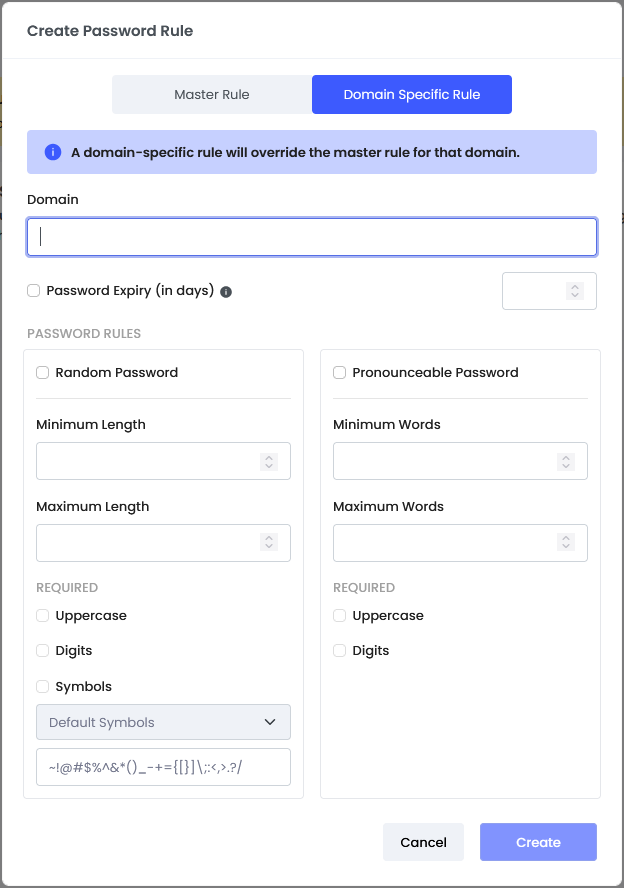
Some websites have their own password requirements that may not align with your Master Rule, such as a maximum length of 15 characters or a restriction on certain symbols. Domain-specific rules let you create tailored settings for these sites.
Domain-specific rules always take priority over the Master Rule for that domain.
Adding a Domain-Specific Rule
-
Click Add Domain-Specific Rule in the top-right corner.
-
Enter the domain name (without
www.) or the exact subdomain address. -
Set the password length and character requirements for that domain.
-
Click Save.
How Domains Are Matched
Rules for a primary domain (like example.com) apply to all its subdomains (like app.example.com and mail.example.com). Rules for a specific subdomain (like app.example.com) apply only to that subdomain.
Recommendation: Only create domain-specific rules when a website's requirements genuinely conflict with your Master Rule. Keeping the number of exceptions small makes your password policy easier to manage and audit.
Note: Password generation rules are global and apply to all users across your organization. They cannot be overridden using group policies. If specific websites need different password requirements, use domain-specific rules instead.