.svg)
Business vaults policies give administrators centralized control over how credential data is stored, shared, moved, and exported across your organization's Enpass deployment. These policies apply specifically to vaults hosted on your company's Google Workspace cloud storage (Google Drive).
By configuring these policies, you establish guardrails that balance security compliance with day-to-day usability for your team. Each setting can be tailored to match your organization's risk tolerance, regulatory requirements, and operational workflows.
Note: All changes to business vault policies are logged in the Policy History and can be audited at any time from the Admin Console.
How to Configure Business Vaults Policies
To access and modify business vault policies in the Enpass Admin Console:
-
Log in to the Enpass Admin Console with an administrator account.
-
Navigate to Policies in the left sidebar.
-
Under the DATA section, select Vaults.
-
Adjust settings using the checkboxes, drop-down menus, and text fields.
-
Click Save in the top-right corner to apply your changes.
Tip: Use Discard Changes before saving if you need to revert uncommitted edits.
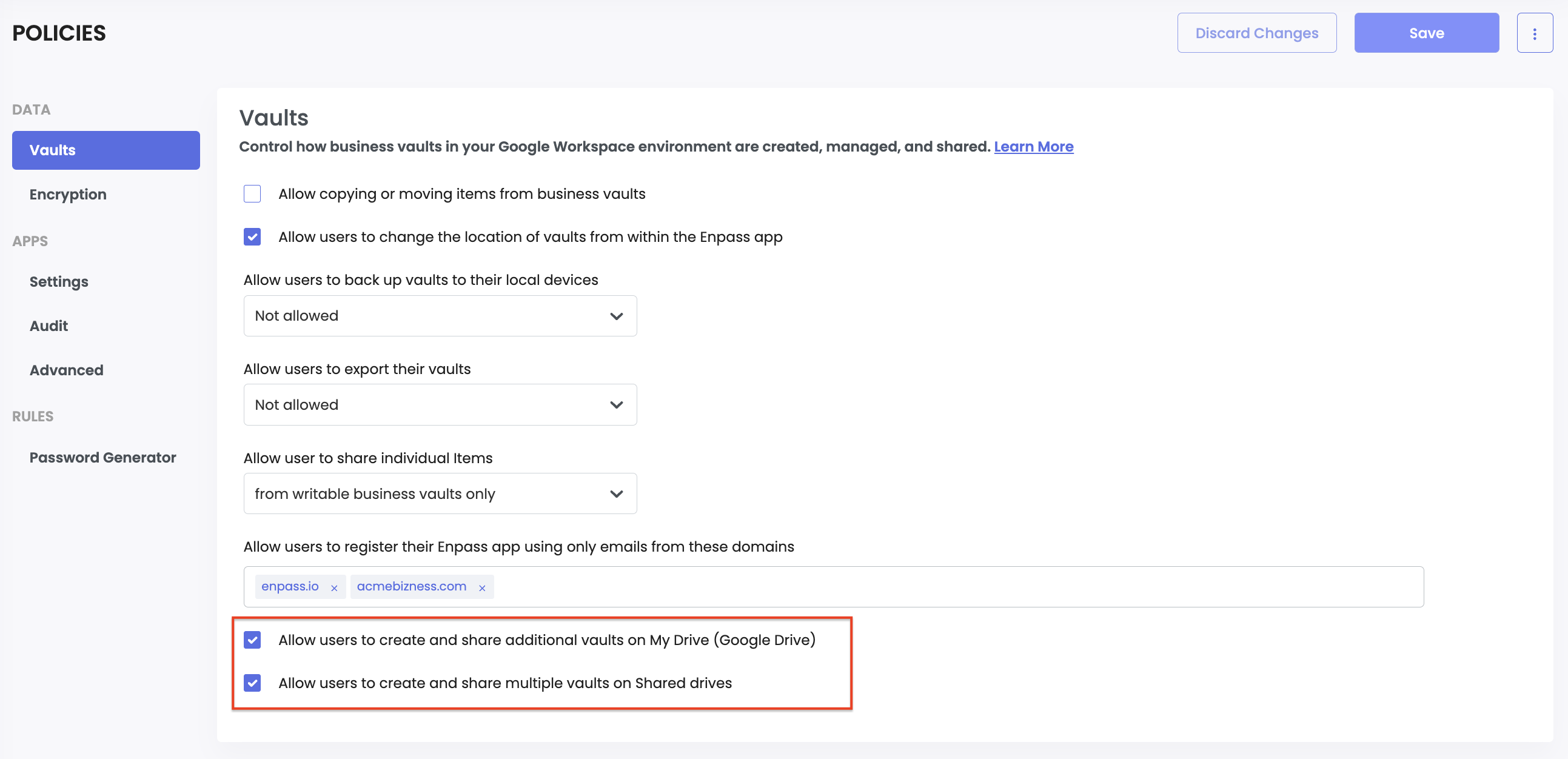
Policy Settings Reference
Allow Copying or Moving Items from Business Vaults
This setting controls whether users can copy or move individual credential items out of business vaults into non-business personal vaults synced to their private cloud accounts.
When enabled: Users can freely copy or move items between business and non-business vaults. This is useful for organizations that allow employees to retain personal copies of non-sensitive credentials.
When disabled: Items remain locked within business vaults. Users cannot transfer credential data outside the organization's controlled storage environment.
Recommendation: Disable this unless you have a good reason to enable it. When enabled, users can transfer business credentials to personal vaults outside your organization's control — so make sure your data-handling policy accounts for this before turning it on.
Allow Users to Change the Location of Vaults from Within the Enpass App
Determines whether users can change the local storage path of vaults on their device from within the Enpass app. This controls where vault data files are saved on the user's hard drive or device storage — it does not affect the cloud sync location.
When enabled: Users can move vault data to a different folder or drive on their local device.
When disabled: Vault data stays in its default local storage path. Users cannot relocate vault files on their device.
Recommendation: Keep this disabled unless users have a specific need to change where vault files are stored locally. Allowing relocation can make it harder for IT to support users or locate vault data during troubleshooting.
Allow Users to Back Up Vaults to Their Local Devices
Controls whether and which business vaults users can back up to their local hard drive or device storage. Local backups create an offline copy of the encrypted vault file.
|
Option |
Description |
|---|---|
|
Not Allowed |
Users cannot create local backups of any business vault. This is the default setting — vault data is already backed up in your organization's cloud environment. |
|
Writable Business Vaults Only |
Users can back up vaults they have write access to, but not read-only shared vaults. Balances user convenience with controlled data distribution. |
|
All Business Vaults |
Users can back up every business vault they have access to, including read-only vaults. |
Recommendation: "Not Allowed" works for most organizations since vault data is already in your cloud environment. Consider other options only if you need additional backup redundancy on local devices.
Allow Users to Export Their Vaults
Defines whether users can export vault data into standard formats (such as CSV or JSON). Exported files contain credentials in plaintext or a portable encrypted format, making this a sensitive setting for data loss prevention.
|
Option |
Description |
|---|---|
|
Not Allowed |
Prevents all vault data exports. No user can extract credential data into files outside of Enpass. |
|
Writable Business Vaults Only |
Users can export data from vaults they own or have write access to, but not from read-only shared vaults. |
|
All Business Vaults |
Full export permissions across all accessible business vaults, including read-only shared vaults. |
Recommendation: Keep this set to "Not Allowed" unless there's a specific need, such as migrating data.
⚠️ Warning: Exported vault data contains plaintext passwords. If exports are allowed, ensure users understand the security implications and have a process for securely deleting export files after use.
Allow Users to Share Individual Items
Controls whether users can share specific credential items from business vaults with other people (inside or outside the organization) using Enpass's pre-shared key (PSK) item sharing. This is distinct from vault-level sharing — it applies to one-off item transfers.
|
Option |
Description |
|---|---|
|
Not Allowed |
No individual item sharing from business vaults. Users must use vault-level sharing instead for any collaboration. |
|
From Writable Business Vaults Only |
Users can share items from vaults they own or have write access to. Items in read-only shared vaults cannot be individually shared onward. |
|
From All Business Vaults |
Users can share individual items from any vault they can access, including read-only shared vaults. |
Recommendation: Keep this set to "Not Allowed" and use vault-level sharing instead. If specific teams need to share individual items, consider using group policy overrides or "From Writable Business Vaults Only" for a better balance.
Restrict Registration to Specific Email Domains
This policy has been moved. Domain restriction is now managed on the dedicated Verifying Email Domains setting, where domains must be verified via DNS before use. Your existing configuration has carried over automatically; no action is needed. Go to Verifying Email Domains
Limits which email addresses can be used to set up the Enpass app for your organization. This also prevents users from connecting to personal cloud accounts (such as a personal OneDrive or Google Drive) instead of your organization's business cloud.
How it works: The domain from the email address used to create your Enpass Business account is automatically added to the allowed list. If your organization uses additional domains (e.g., subsidiary.io, regional.yourcompany.com), add them here so those employees can set up Enpass and access your organization's business vaults.
Recommendation: Always configure this setting. It's one of the simplest ways to ensure users connect to the right business cloud and keeps unauthorized personal accounts out of your Enpass environment. Include all legitimate company and subsidiary domains.
Allow Users to Create and Share Additional Vaults on My Drive (Google Drive)
When enabled, users can create new business vaults on their Google Drive storage and share them with colleagues. This can be useful when Shared Drives are not available in your plan, or when users need separate vaults for organizing purposes only.
Recommendation: Keep this disabled unless needed. Allowing users to create vaults freely on Google Drive can lead to vault sprawl, making it harder to manage. It can also cause recoverability issues if a user's account is deleted — their Drive vaults may be lost along with it.
Allow Users to Create and Share Multiple Vaults on Shared Drives
When enabled, users can create and manage business vaults on Google Shared Drives. Shared Drive vaults are well suited for department-level or project-level credential management, since access is governed by the Shared Drive's existing membership and permissions.
Recommendation: This is particularly useful for teams that already collaborate through Shared Drives and want credential storage alongside their documents and files.
Setting Up Different Policies Across Teams
If different departments, teams, or user groups have different security needs, you can use Enpass's group policy management to create tailored configurations instead of applying a single policy across the entire organization.
For example, you might want to restrict vault creation and sharing to a specific group of admins, while keeping the defaults locked down for everyone else. See Controlling Vault Sharing
A good approach is to start strict at the organization level — deny exports, deny backups, deny copy/move, and deny creating or sharing additional vaults. Then create group-level policy overrides for teams that need more flexibility, such as IT admins who need export access for data migration, or vault administrators who manage vault creation and sharing on behalf of their teams.
Note: Group policy overrides are managed from the Groups section of the Admin Console, not the Policies section. See the Managing Group Policies for details.