.svg)
A vault is only as secure as the Master Password protecting it. Left to their own choice, users tend to pick short and easy-to-guess passwords. These policies let you centrally enforce Master Password requirements so that every vault in your organization meets your security standards.
To configure these policies, go to Policies > Encryption in the Admin Console.
How to Configure Vault Encryption Policies
-
Log in to the Enpass Admin Console with an administrator account.
-
Navigate to Policies in the left sidebar.
-
Under the DATA section, select Encryption.
-
Adjust settings using the input fields, drop-down menus, and checkboxes.
-
Click Save in the top-right corner to apply your changes.
Tip: Use Discard Changes before saving if you need to revert uncommitted edits.
Policy Settings Reference
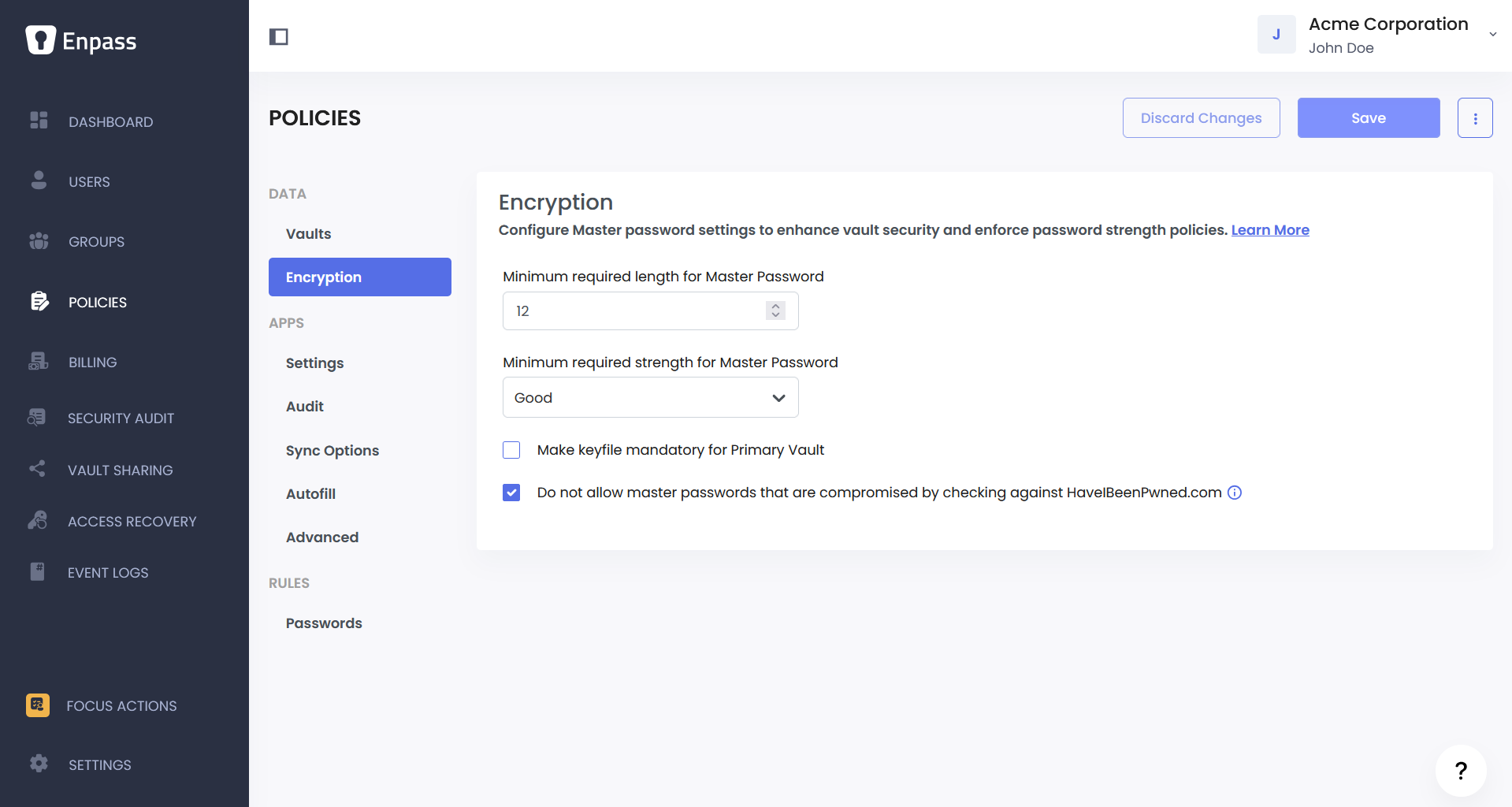
Minimum Required Length for Master Password
Sets the minimum number of characters a user's Master Password must contain. Users will not be able to create or change their Master Password to anything shorter than this value.
Recommendation: Set this to at least 12 characters. Shorter passwords are significantly easier to crack through brute-force attacks. A longer minimum encourages users to create passphrases, which are both stronger and easier to remember.
Minimum Required Strength for Master Password
Defines the minimum strength level that a user's Master Password must meet. Enpass evaluates password strength based on factors like length, complexity, and common patterns.
|
Option |
Description |
|---|---|
|
Not Enforced |
No strength requirement. Users can set any Master Password as long as it meets the minimum length. |
|
Weak |
Minimal strength threshold. Blocks only the most obvious passwords. |
|
Medium |
Requires a reasonably complex password that avoids common patterns. |
|
Strong |
Requires a password with good length and a mix of character types, or a 6-word diceware passphrase. |
|
Excellent |
The highest strength level. Requires a highly complex password or a 7+ word diceware passphrase. |
Recommendation: Set this to "Strong" or higher. The Master Password is the single key protecting all of a user's credentials — a weak Master Password undermines every other security measure in place. Combined with a minimum length of 12+ characters, the "Strong" setting provides solid protection for most organizations.
Do Not Allow Master Passwords That Are Compromised
When enabled, Enpass checks a user's Master Password against the HaveIBeenPwned Pwned Passwords database of known compromised passwords. If the password has appeared in a data breach, the user will be required to choose a different one.
This check uses a privacy-preserving method called k-anonymity. Enpass creates a hash of the password, sends only the first 5 characters of that hash to the HaveIBeenPwned service, and receives back a list of matching hashes. The actual comparison happens locally on the device — the full password or its complete hash is never sent to any external server.
Recommendation: Enable this. It prevents users from choosing a Master Password that already exists in known breach databases. The privacy impact is minimal since only a short hash prefix leaves the device, making it practically impossible to determine the original password from that alone.
Make Keyfile Mandatory for Primary Vault
When enabled, users are required to add a keyfile to their Primary Vault in addition to their Master Password. A keyfile is a separate file that acts as a second factor for encryption — the vault cannot be decrypted without both the Master Password and the keyfile.
This provides the strongest protection against brute-force attacks. Even if an attacker manages to crack or guess the Master Password, the vault remains inaccessible without the exact keyfile. Since keyfiles contain random data that cannot be guessed or generated through brute-force, they effectively make password-only attacks useless.
Recommendation: Enable this for organizations that need the highest level of vault protection. Keyfiles are especially valuable in environments where the risk of targeted attacks is high.
⚠️ Warning: If a user loses their keyfile, their vault data cannot be recovered. Make sure your organization has a clear process for keyfile storage and backup before enabling this policy. Communicate this clearly to all users.
Setting Up Different Policies Across Teams
If different teams have different security requirements, you can use group policy overrides to apply stricter encryption policies to specific groups without affecting the rest of the organization.
For example, you might require "Excellent" Master Password strength and mandatory keyfiles for your finance or security teams, while keeping "Strong" as the default for everyone else.
Note: Group policy overrides are managed from the Groups section of the Admin Console, not the Policies section. See the Managing Group Policies documentation for details.