.svg)
Enpass lets you autofill credentials through browser extensions, boosting productivity and avoiding the risk of exposing passwords through the clipboard. These policies let you override the autofill behavior for specific websites — whether to suppress autofill prompts on certain domains or to allow autofill on trusted internal sites that don't use HTTPS.
To configure these policies, go to Policies > Autofill in the Admin Console.
How to Configure Autofill Policies
-
Log in to the Enpass Admin Console with an administrator account.
-
Navigate to Policies in the left sidebar.
-
Under the APPS section, select Autofill.
-
Add domains or URLs to the relevant lists.
-
Click Save in the top-right corner to apply your changes.
Tip: Use Discard Changes before saving if you need to revert uncommitted edits.
Policy Settings Reference
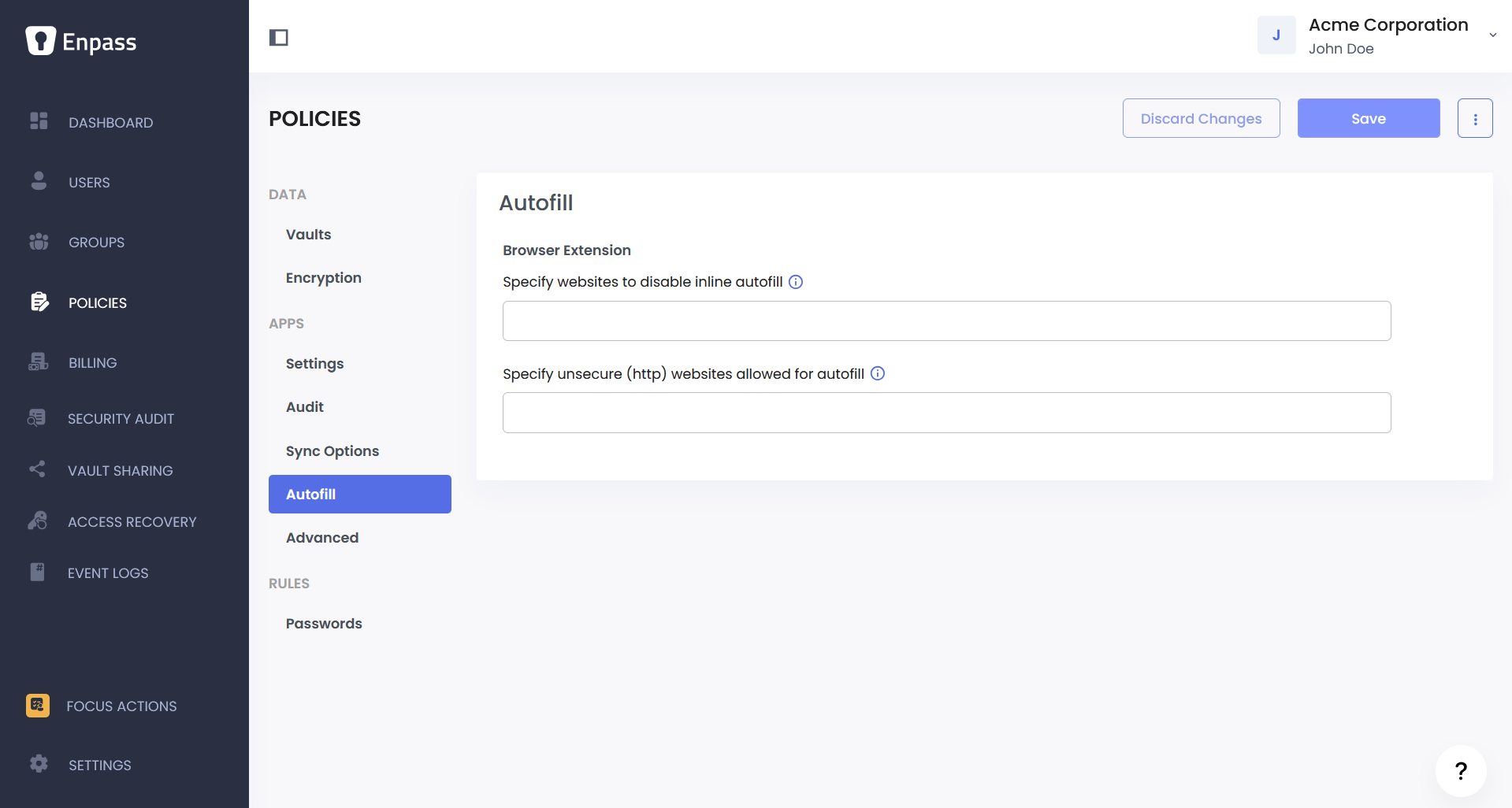
Restrict Inline Autofill on Specific Domains
By default, the Enpass browser extension shows an inline autofill popup when it detects a login form. This setting lets you suppress that popup on specific websites where you don't want it to appear.
How it works: Add the domains or URLs where inline autofill should be disabled. The Enpass autofill popup will no longer appear on these sites. Users can still access their credentials for these sites — they just need to open the Enpass Assistant from the browser extension toolbar icon and fill from there.
Recommendation: Use this for websites where the autofill popup interferes with the login experience or causes confusion. Common examples include internal tools with custom login flows that conflict with autofill, or third-party sites where autofill causes issues. Keep this list as short as possible — autofill works best when it's available everywhere by default.
Allow Autofill on Unsecure (HTTP-only) Websites
By default, Enpass disables autofill on websites that don't use HTTPS. This is a safety measure — filling credentials on an unencrypted connection means passwords could be intercepted in transit. However, some legitimate internal websites or legacy tools may still use HTTP. This setting lets you add those trusted URLs as exceptions so that Enpass will autofill credentials on them without displaying a security warning.
How it works: Add the specific HTTP URLs where autofill should be allowed.
Recommendation: Only add URLs that you trust and that are within your organization's network. Avoid adding any public-facing HTTP websites.
⚠️ Warning: Credentials filled on HTTP websites are transmitted in plaintext and can be intercepted on the network. Use this setting sparingly and only for internal, trusted domains where HTTPS is not yet available.
Setting Up Different Policies Across Teams
If certain teams need different autofill exceptions — for example, a development team that works with internal HTTP staging servers, or a support team that uses a custom portal where inline autofill conflicts — you can use group policy overrides to configure these settings per team.
Note: Group policy overrides are managed from the Groups section of the Admin Console, not the Policies section. See the Managing Group Policies documentation for details.