.svg)
Setting password rules is only half the battle. Over time, passwords get reused, leaked in breaches, or built from predictable patterns. These policies control how Enpass notifies users, shows risks, and surfaces suggestions in the Security Audit dashboard — both in the Enpass app and the Admin Console.
To configure these policies, go to Policies > Audit in the Admin Console.
How to Configure Password-Audit Policies
-
Log in to the Enpass Admin Console with an administrator account.
-
Navigate to Policies in the left sidebar.
-
Under the APPS section, select Audit.
-
Adjust settings using the drop-down menus, checkboxes, and text fields.
-
Click Save in the top-right corner to apply your changes.
Tip: Use Discard Changes before saving if you need to revert uncommitted edits.
Policy Settings Reference
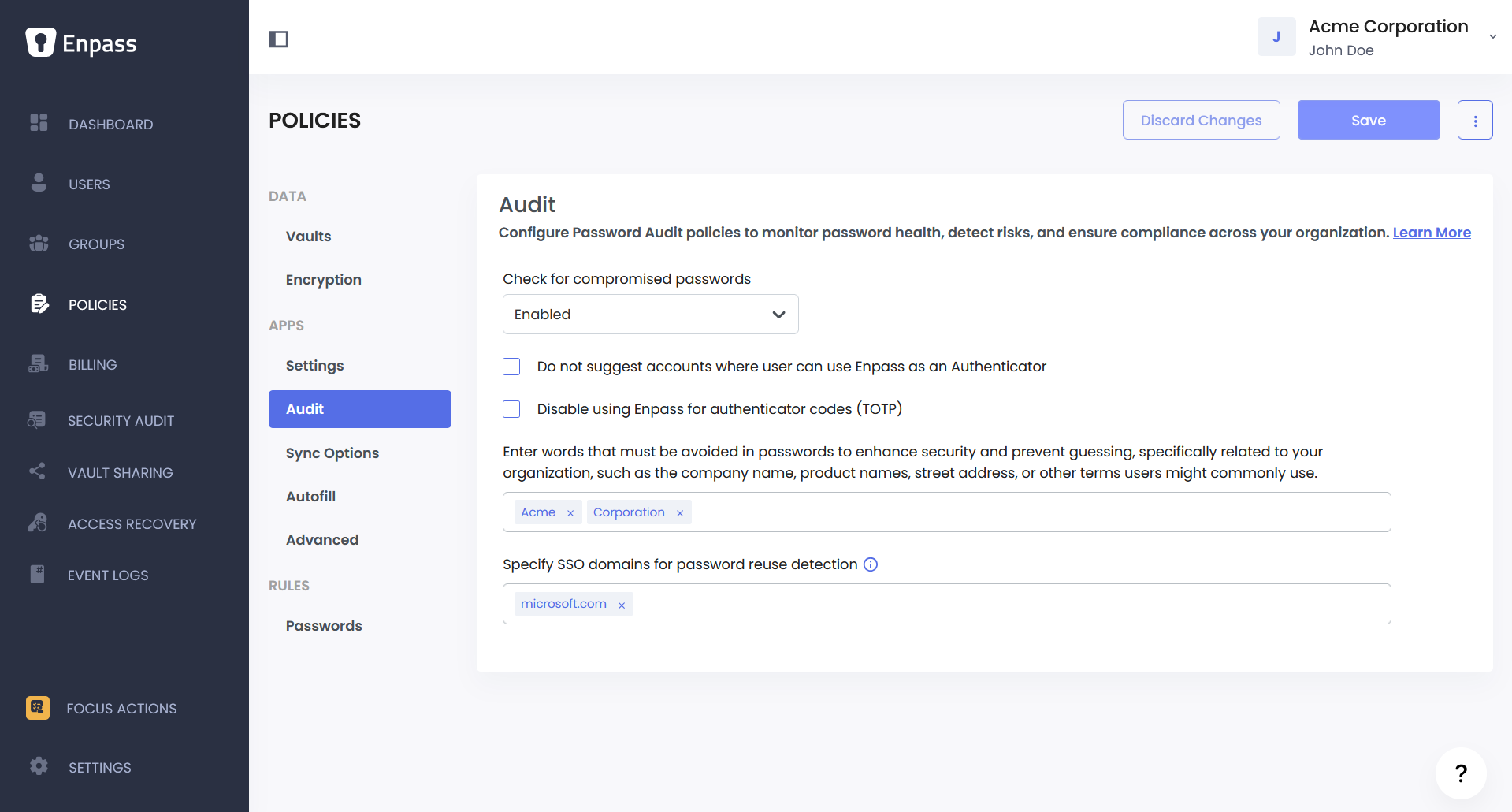
Check for Compromised Passwords
Controls whether Enpass automatically checks passwords stored in user vaults against known breach databases. This check uses a privacy-preserving method called k-anonymity. Enpass creates a hash of each password, sends only the first 5 characters of that hash to the HaveIBeenPwned Pwned Passwords service, and receives back a list of matching hashes. The actual comparison happens locally on the device — the full password or its complete hash is never sent to any external server.
|
Option |
Description |
|---|---|
|
Yes |
Enpass automatically checks all stored passwords for breaches. Users are notified if any of their passwords appear in known breach databases. |
|
No |
Compromised password checks are completely disabled across the organization. |
|
Let users decide |
Users can enable or disable this check themselves in the Enpass app. |
Recommendation: Set this to "Yes." Compromised password checks are one of the most effective ways to catch credentials that are already in attacker databases. Since the check is privacy-preserving and happens on device, there's little reason to leave this off.
Do Not Suggest Accounts Where User Can Use Enpass as an Authenticator
Enpass has a built-in TOTP (Time-Based One-Time Password) authenticator — similar to apps like Google Authenticator. By default, when a user views an item for a service that supports TOTP-based two-factor authentication (2FA), Enpass may suggest setting up authenticator codes through Enpass. Enabling this policy suppresses those suggestions.
Recommendation: Enable this if your organization uses a separate, dedicated authenticator app and you don't want users storing both passwords and TOTP codes in the same place.
Disable Using Enpass for Authenticator Codes (TOTP)
When enabled, users cannot add one-time codes (TOTP) to items stored in Enpass using Enpass's built-in authenticator. This completely blocks the authenticator functionality, not just the suggestions.
Recommendation: Enable this if your organization uses a separate, dedicated authenticator app and you don't want users storing both passwords and TOTP codes in the same place. This is stricter than the suggestion-suppression setting above — it fully prevents users from adding TOTP codes to any Enpass item.
Note: If you only want to stop Enpass from suggesting 2FA setup but still allow users to add TOTP codes manually, use the "Do Not Suggest" setting above instead.
Enter Words That Must Be Avoided in Passwords
Enpass already checks passwords against commonly used dictionaries and known weak password lists. This setting lets you go a step further by adding organization-specific words that your users are likely to fall back on — such as the company name, product names, office location, or street address.
When a user's password contains any of the listed words, Enpass will flag it as weak in the password audit, prompting the user to choose a stronger password.
How it works: Enter words or phrases separated by commas (e.g., acmecorp, mainstreet, productx). The check is case-insensitive. There's no need to add common dictionary words or well-known weak passwords here — Enpass handles those automatically.
Recommendation: Add terms specific to your organization that wouldn't appear in standard password dictionaries — your company name, product names, office addresses, and any other terms unique to your business. These are the first things an attacker would try in a targeted attack.
Note: This setting is applicable on Enpass app versions 6.8.3 and later.
Specify SSO Domains for Password Reuse Detection
Add your organization's SSO (Single Sign-On) domains so that Enpass can detect when users are reusing their SSO password on other accounts. Since the SSO password is often the key to multiple systems, reusing it elsewhere significantly increases risk if that external service is breached.
How it works: Enter your SSO login domains (e.g., login.microsoftonline.com). If SSO login account password is stored in Enpass, it will detect when users reuse their SSO password on other accounts. The Security Audit section of the Admin Console will show the number of SSO duplicate passwords across your organization.
Recommendation: Always configure this if your organization uses SSO. Reusing an SSO password on external services is one of the highest-risk password behaviours — if the external service is breached, the attacker effectively has the key to your SSO-protected systems.
Setting Up Different Policies Across Teams
If different teams have different audit requirements, you can use group policy overrides to adjust these settings per group.
For example, you might enforce automatic compromised-password checks for all users, but only disable TOTP in Enpass for teams that are required to use a dedicated authenticator app.
Note: Group policy overrides are managed from the Groups section of the Admin Console, not the Policies section. See the Managing Group Policies documentation for details.